Getting started
Ten minutes from an app that talks to Stripe and Slack to the same app running against twins of both, with fake keys, every write it makes recorded, and nothing leaving your machine.
Every command below runs as written on each release, and every output block is what it printed, so what you see is what you will get.

What you need
- Node 22.3+ or Bun 1.2+. The twins run on either; your app can be anything.
- An app that uses a vendor SDK. This page uses a small Node app,
acme-web, whose manifest names the Stripe and Slack SDKs and whose env example names their credentials:
{ "name": "acme-web", "private": true, "dependencies": { "stripe": "^17", "@slack/web-api": "^7" } }
STRIPE_SECRET_KEY=
SLACK_BOT_TOKEN=
The app's one script creates a customer the way production code does, with the real Stripe SDK and the key from its env. Nothing in it knows about twins:
import Stripe from 'stripe';

const stripe = new Stripe(process.env.STRIPE_SECRET_KEY);
const customer = await stripe.customers.create({ email: 'ada@example.com', name: 'Ada' });
console.log(`created ${customer.id}`);
1. Install the twins your app needs
In the app's directory, the app's own dependencies first, then the volter command and one
package per twin:
npm install
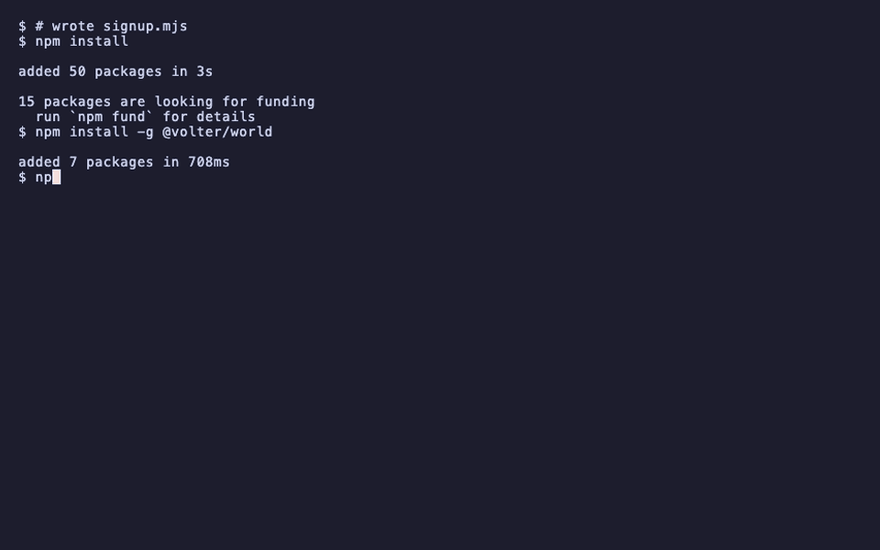
npm install -g @volter/world
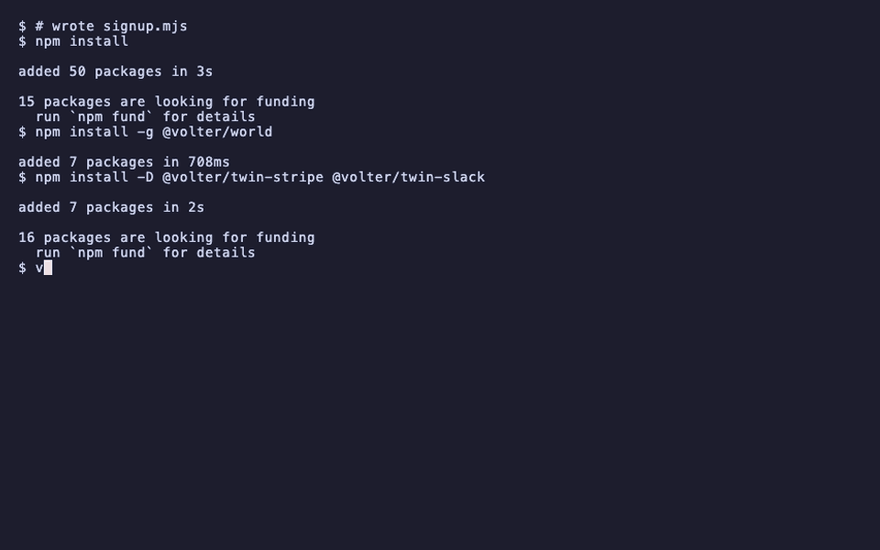
npm install -D @volter/twin-stripe @volter/twin-slack
@volter/world is the volter command. Each @volter/twin-<vendor> package is one twin. With
Bun it is bun add -g @volter/world and bun add -d for the twins; every command below is the
same. Not sure which twins your app needs? Skip the third line: volter world init --install in
the next step finds them from your dependencies and env names and installs them. The command also installs with one line, which checks your Node or Bun first: curl -fsSL https://world.volter.ai/install.sh | sh, or irm https://world.volter.ai/install.ps1 | iex in
PowerShell.
2. Make the world
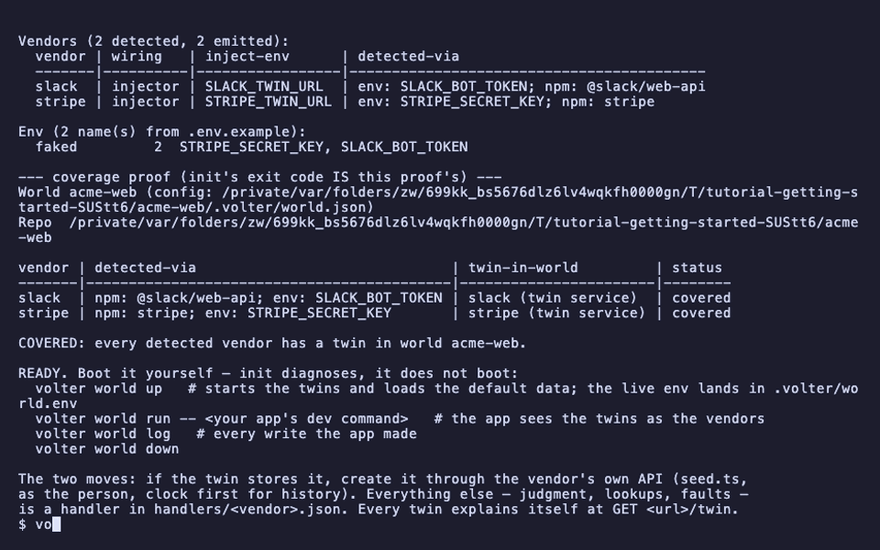
volter world init
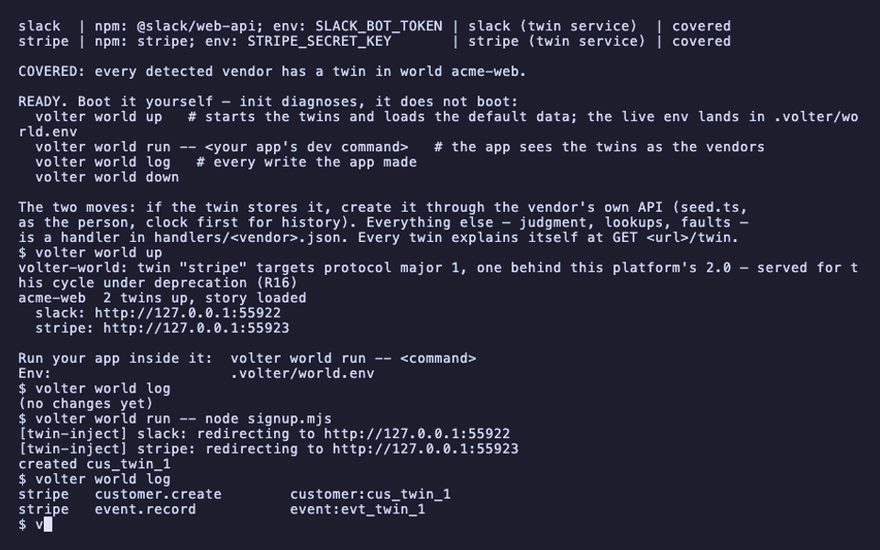
Vendors (2 detected, 2 emitted):
  vendor | wiring   | inject-env                        | detected-via
  slack  | injector | SLACKAPP_TWIN_URL, SLACK_TWIN_URL | env: SLACK_BOT_TOKEN; npm: @slack/web-api
  stripe | injector | STRIPE_TWIN_URL                   | env: STRIPE_SECRET_KEY; npm: stripe
COVERED: every detected vendor has a twin in world acme-web.
init reads the app: which vendor SDKs it links, which env names it reads. It writes
.volter/world.json beside your code, one twin per vendor.
Commit .volter/. It holds the world's story: the config, the default data, the handlers. It
never holds a key, and .volter/.gitignore keeps the running state out.
A vendor with no twin yet is named, not hidden, and init exits 1 until you acknowledge it. The
coverage page says which vendors have twins today.
3. Start it
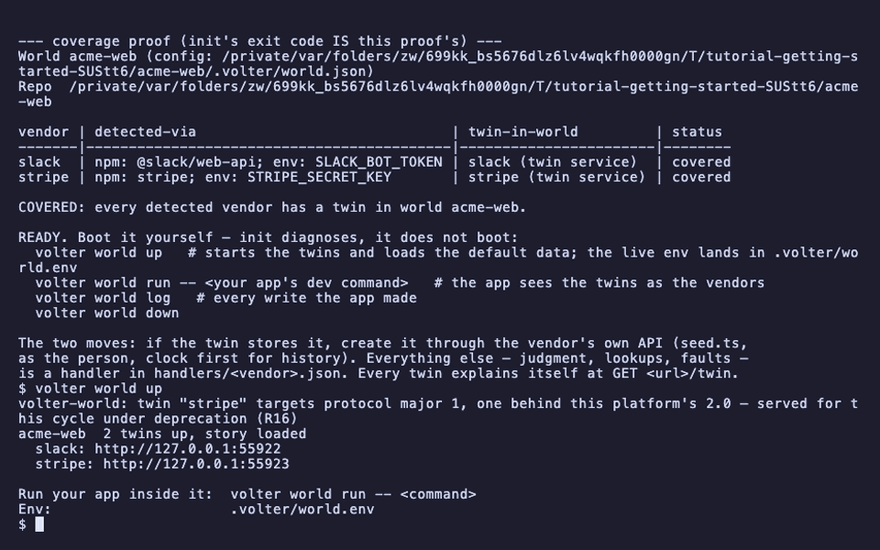
volter world up
acme-web  2 twins up, story loaded
  slack: http://127.0.0.1:56313
  stripe: http://127.0.0.1:56314
Run your app inside it:  volter world run -- <command>
Env:                     .volter/world.env
The twins are listening. The first up also loads each twin's default data, so the world
starts looking alive: the slack twin has channels and a first conversation. That data is not
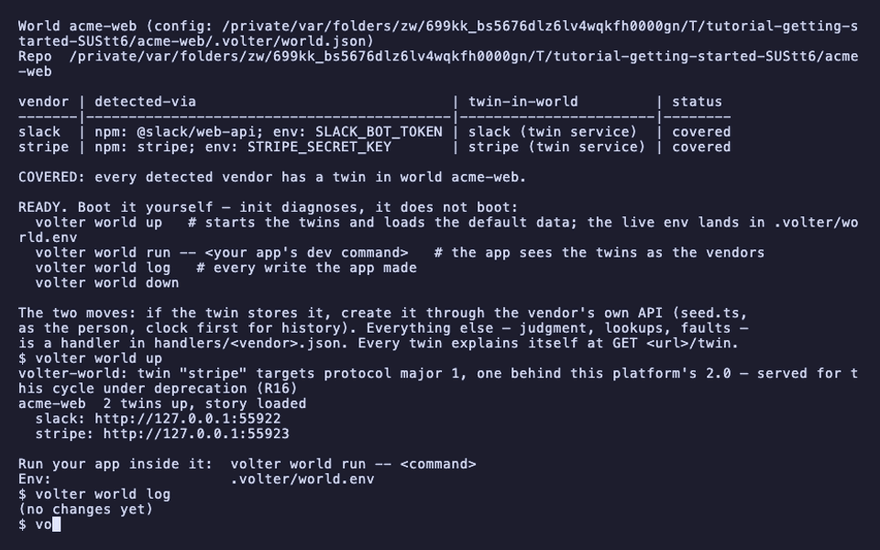
yours, and the log is empty:
volter world log
(no changes yet)
4. Run your app inside it
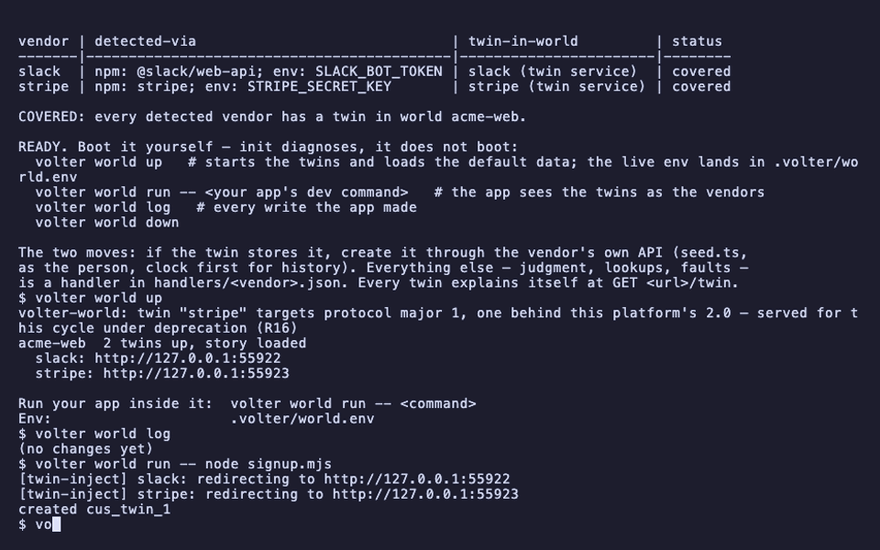
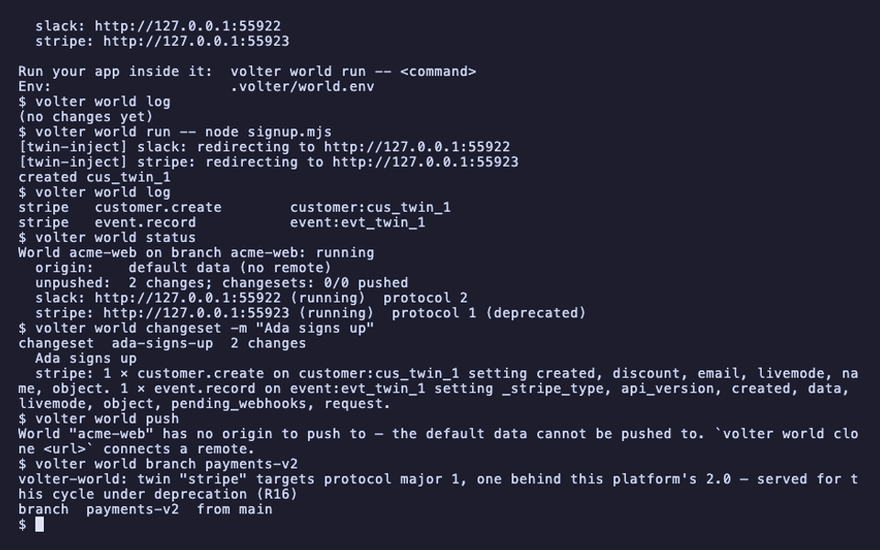
volter world run -- node signup.mjs
[twin-inject] slack: redirecting to http://127.0.0.1:56313
[twin-inject] stripe: redirecting to http://127.0.0.1:56314
created cus_twin_1
Your app ran unchanged. It built its Stripe client the way it does in production, new Stripe(key) with no host or port, and the injector sent api.stripe.com to the twin at the
process boundary. The key it used was a fake one from the world's env.
run takes any command: volter world run -- npm test, volter world run -- npm run dev.
5. See what it did
volter world log
stripe   customer.create   customer:cus_twin_1
stripe   event.record     event:evt_twin_1
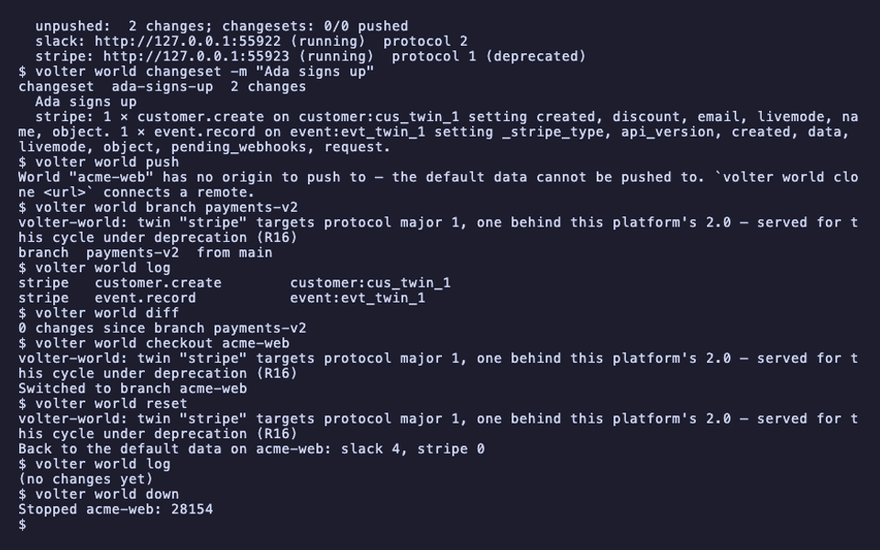
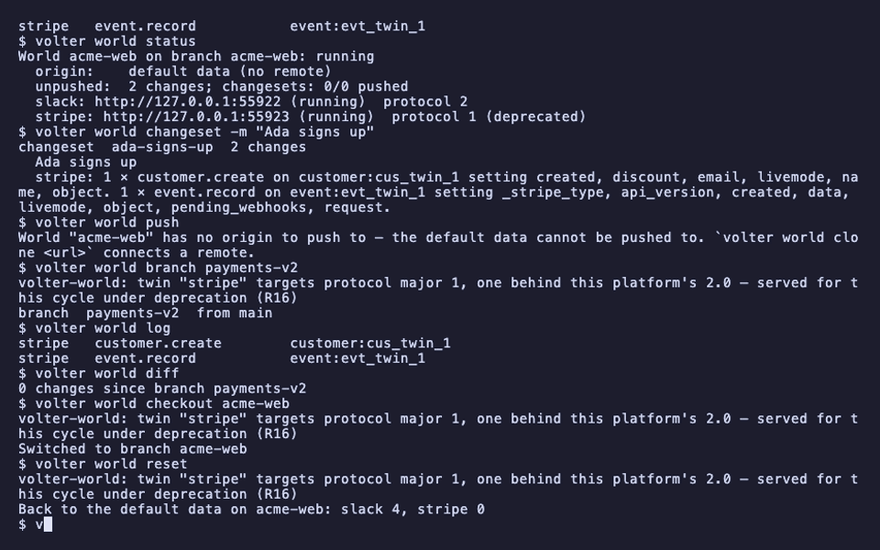
Every write your app made, in order, one line each: the customer, and the event Stripe records for it. The twin recorded them automatically; there is no staging area and nothing to commit.
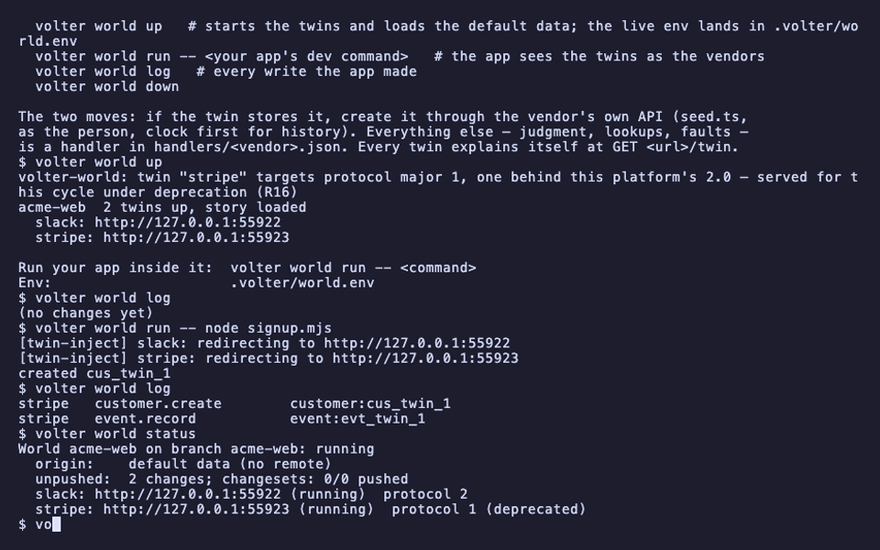
volter world status
World acme-web on branch acme-web: running
  origin:    default data (no remote)
  unpushed:  2 changes; changesets: 0/0 pushed
Nothing has gone anywhere: the changes are unpushed, and the world's origin is its default data.
6. Cut a changeset
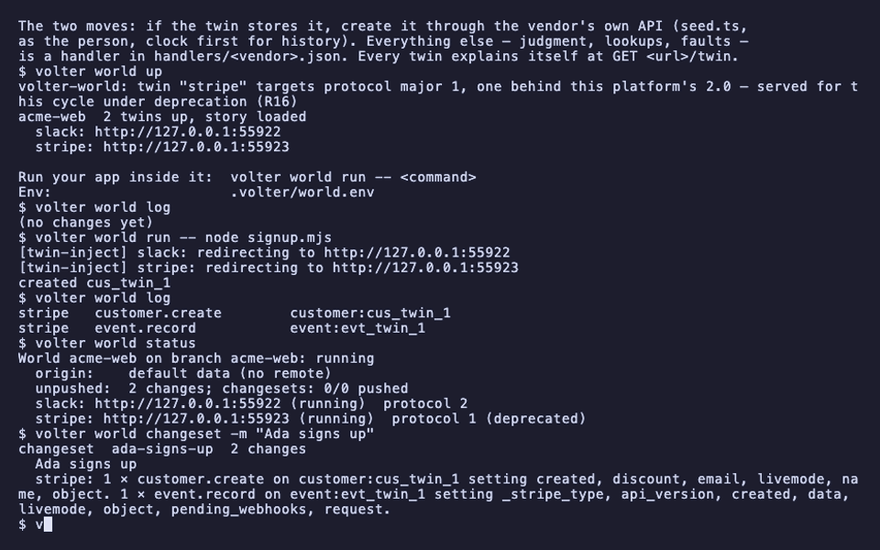
volter world changeset -m "Ada signs up"
changeset  ada-signs-up  2 changes
  Ada signs up
  stripe: 1 × customer.create on customer:cus_twin_1 setting created, discount, email, livemode, name, object. 1 × event.record on event:evt_twin_1 setting _stripe_type, api_version, created, data, livemode, object, pending_webhooks, request.
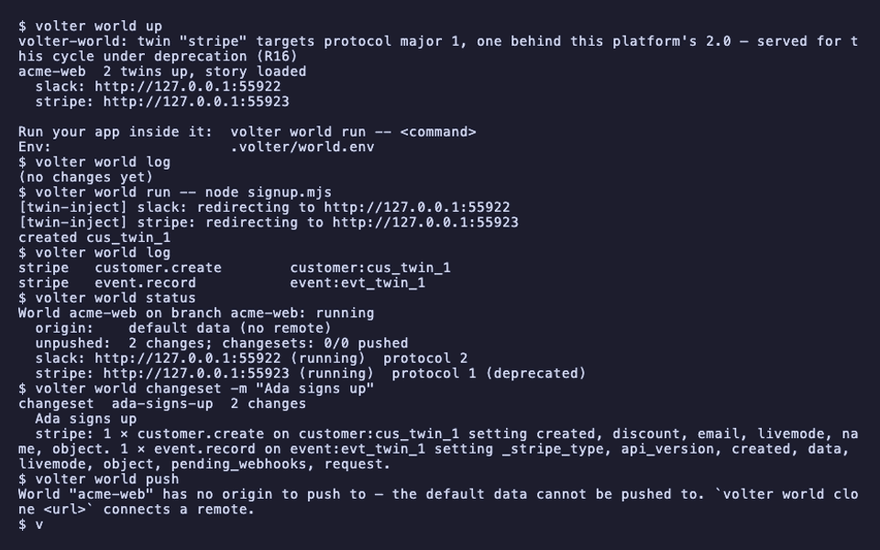
A changeset is the reviewable unit: the changes, a summary generated from them, and your message. It is what a push sends. This world has no remote to push to:
volter world push
World "acme-web" has no origin to push to — the default data cannot be pushed to.
Share a world connects one, and deploy from a shared world reaches the vendor.
7. Branch, and come back
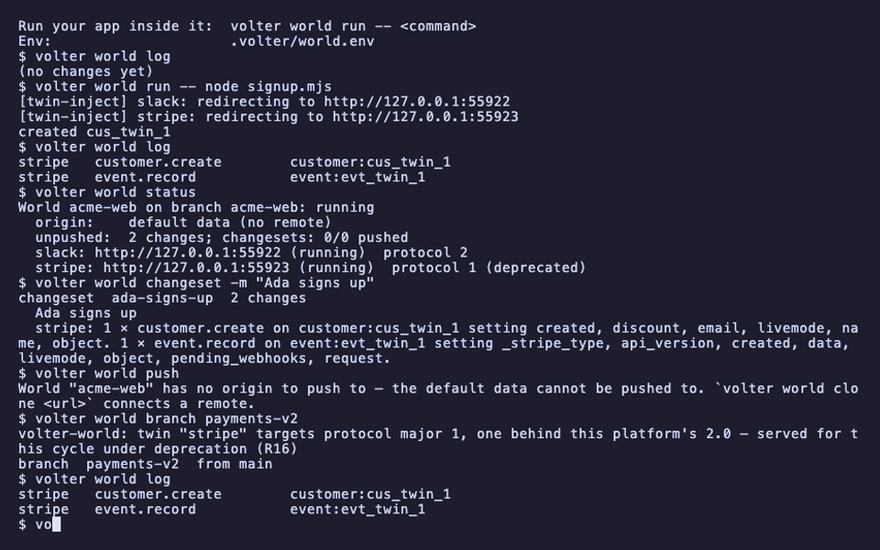
volter world branch payments-v2
branch payments-v2 from main
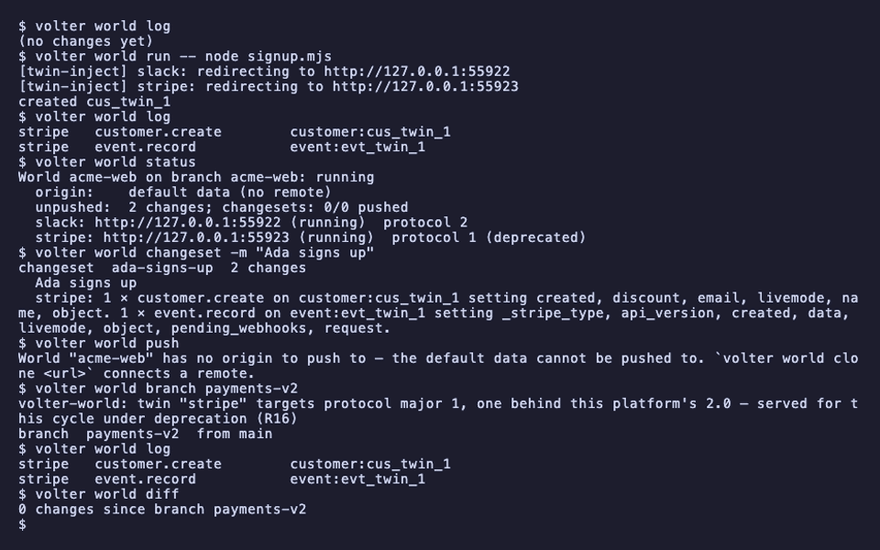
A branch is a pointer, not a copy: it starts exactly where the world stands, history included,
and records its own changes from there. The log is the same history; diff shows nothing has
happened on the branch yet:
volter world log
volter world diff
stripe   customer.create   customer:cus_twin_1
stripe   event.record     event:evt_twin_1
0 changes since branch payments-v2
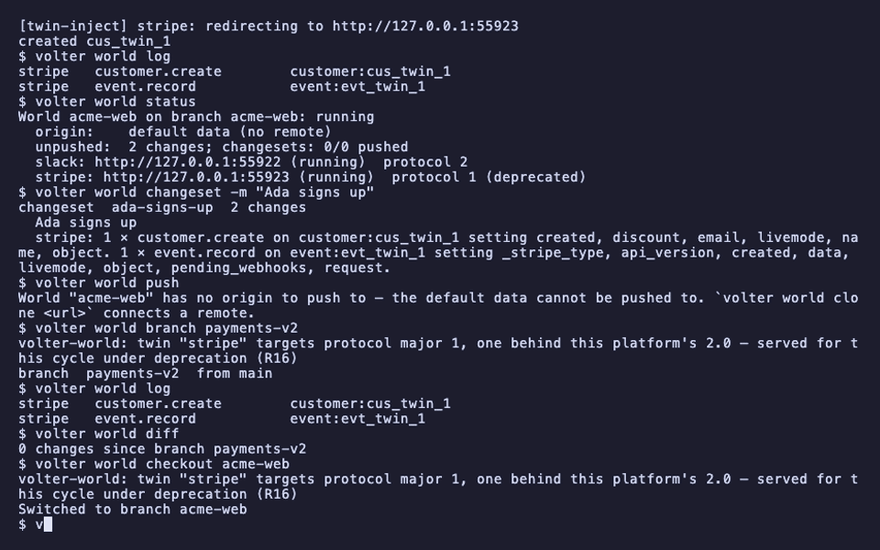
One branch runs at a time, and checkout switches which. Your app's env always points at the
branch you are on.
volter world checkout acme-web
Switched to branch acme-web
8. Back to the default data
volter world reset
Back to the default data on acme-web
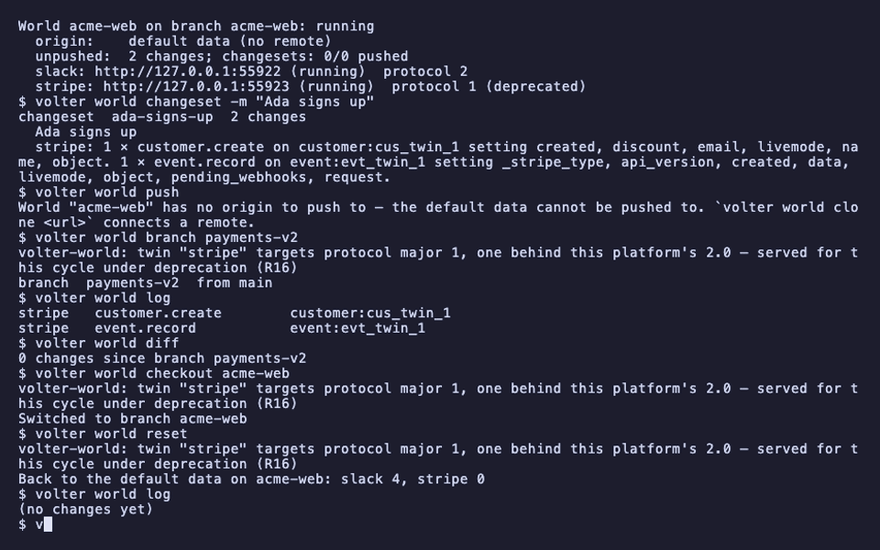
The branch forgets what your app did and reloads the default data. The log is empty again:
volter world log
(no changes yet)
9. Stop
volter world down
Stopped acme-web
The twins stop. The branch's data stays, so the next volter world up resumes where you left
off. volter world down --purge forgets it.
Where next
- Your test suite: run your test suite.
- A record your test needs, a call that has to fail: shape the world for a test.
- Real data instead of the defaults: work from a shared world.
- What just happened, in words: the model.
Playback
Each command above, as the recording shows it.
npm install
npm install -g @volter/world
npm install -D @volter/twin-stripe @volter/twin-slack
volter world init
volter world up
volter world log
volter world run -- node signup.mjs
volter world log
volter world status
volter world changeset -m "Ada signs up"
volter world push
volter world branch payments-v2
volter world log
volter world diff
volter world checkout acme-web
volter world reset
volter world log
volter world down